10 Clear Signs Your Games Are Suffering from a CPU Bottleneck
Ever felt like your gaming rig should be crushing frames, but for some reason, it just… doesn’t?
You tweak settings, update drivers, even blow the dust out, yet the stutters stay. That might not be your GPU’s fault. It could be your CPU waving a little white flag.
Let’s dig into how to spot that. Because once you know, you can fix easily.
What Does a CPU Bottleneck Actually Mean?
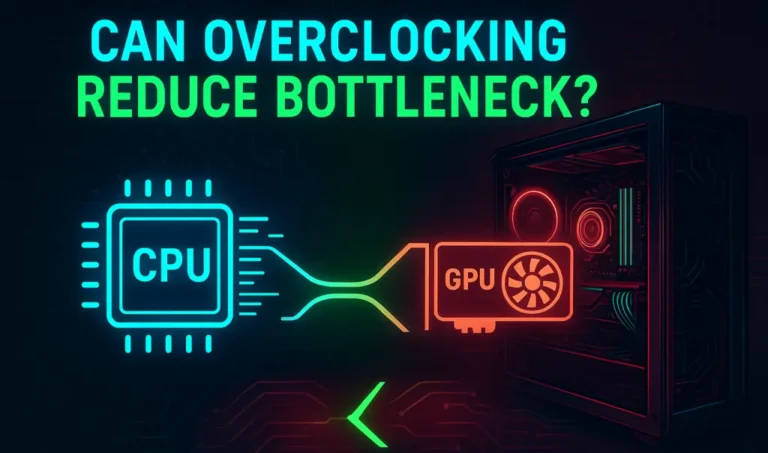
Here’s the deal. Your CPU and GPU are like teammates. One does the thinking, the other handles the visuals. The CPU figures out what needs to happen in the game, and the GPU turns those instructions into the graphics you see on screen.
But when the CPU can’t keep up with the GPU’s pace, that teamwork breaks down. That’s what people mean by a bottleneck. Picture it like a super-fast delivery truck waiting on a slow warehouse worker to load boxes. The truck’s ready to roll, but the packages just aren’t coming fast enough.
So, your graphics card ends up sitting idle, waiting for the CPU to catch up. The game still runs, sure, but it doesn’t feel as smooth as it should. And the tricky part? Most people blame the GPU, when the real slowdown is hiding in the processor.
Why CPU Bottlenecks Happen
At the end of the day, it’s mostly about balance. There are several reasons this happens. Sometimes, the CPU is simply too old or underpowered for the rest of your system. Other times, poor optimization or background tasks eat up processing power.
Games that rely heavily on physics, AI, or open-world calculations usually stress the CPU more. So even if you have a monster GPU, the processor might still be the one dragging performance down.
Anyway, let’s talk about how to spot when your games are actually suffering from a CPU bottleneck.
1. Low GPU Usage While Gaming
If your GPU is running at 60 percent or less while your CPU is maxed out, that is the classic sign of a CPU bottleneck. The processor cannot send enough data for the GPU to stay busy.
You can check this easily using tools like MSI Afterburner or the Windows Task Manager. Run a game and observe the usage numbers. When the CPU stays near 100 percent but the GPU idles below 80, your processor is the limiting factor.
It is like the brain of your system struggling to keep pace with its muscles.
2. CPU Usage Maxed Out, GPU Relaxed
Open up Task Manager and watch the performance tab while you’re gaming.
If your CPU is slammed at 100% while your GPU looks half asleep, you’ve already found the problem.
All the logic, physics, and AI calculations happen on the CPU. When it’s working overtime, it can’t send frames fast enough to the GPU.
The result?
Uneven frame pacing, random drops, and those little hitches that make a smooth game suddenly feel clunky.
It’s not that the game’s broken, your hardware just is not in sync. One is sprinting while the other is jogging.
3. FPS Drops in CPU Heavy Games
Titles like Cities: Skylines 2, GTA V, Starfield, or Total War are notorious for punishing weak CPUs. They rely heavily on calculations per frame, not just graphics.
If your frame rate dips during big battles, traffic jams, or when you look over dense cities, your CPU’s sweating. GPU bottlenecks usually hit at max settings, but CPU bottlenecks show up during busy scenes with lots of data to process.
4. Stutter and Frame Time Spikes
Here is a sneaky one. You might see a decent average FPS number, but gameplay still feels uneven. Micro stutters, input delays, and inconsistent frame pacing often point to a CPU bottleneck.
It is the kind of issue that numbers alone cannot show. The average frame rate looks fine, yet the experience feels messy.
Thing is, the CPU might be delivering frames unevenly, causing tiny pauses that ruin smooth motion. Once you notice it, it is hard to ignore.
5. Lower Resolutions Make Performance Worse
It sounds backwards, but it’s true.
When you drop your game’s resolution, the GPU suddenly has less work to do. It starts flying through frames while your CPU can’t keep up. That’s when the bottleneck shows itself.
If your FPS barely improves, or even gets worse at lower resolutions, that’s a sign. The CPU can’t feed frames fast enough to match the GPU’s speed.
Weirdly enough, sometimes raising the resolution can actually help performance a bit. It shifts some of the load back to the GPU, balancing things out. Counterintuitive, yeah, but it happens more often than you’d think.
6. Sudden Lag When Multitasking
Ever alt + tab out of a game to check Discord or start recording, and suddenly your FPS nosedives?
That’s your CPU shouting, “I can’t do everything at once!”
Modern games already eat up a lot of processing power. Add streaming software, Chrome tabs, or overlays, and your CPU just can’t juggle it all.
Here’s a quick check: open Task Manager while your game’s running and sort by CPU usage.
Chances are you’ll see Discord, Chrome, or even game launchers hogging precious cycles your game needs to stay smooth.
If light multitasking wrecks your frame rate, your CPU already stretched thin.
7. Throttling or 100 Percent CPU Temperature
If your CPU temperature shoots up while the GPU barely warms, something is off. A healthy gaming setup usually stresses both parts fairly equally.
When only the processor is burning hot, it means it is doing most of the work. This often happens in CPU-bound games or setups where the CPU is underpowered.
You might hear your fans ramping up for no good reason. That’s your system trying to cool down a processor that is working far harder than it should.
8. Outdated CPU with a Modern GPU
Pairing an old i5 or Ryzen 3 with an RTX 4080 is like hooking a lawn mower engine to a race car. It’ll move, but not the way it should.
I’ve seen rigs where the GPU sits there at half load because the CPU just can’t feed it fast enough. It’s like the graphics card is constantly waiting for instructions that never come on time.
Games that need fast single-core performance, like shooters or competitive titles, suffer the most. Even if you lower graphics, the bottleneck remains.
9. High Frame Time Variance During Busy Scenes
If your gameplay feels fine in calm areas but turns into chaos during explosions, crowds, or city scenes, that’s a sign your CPU’s getting hammered.
All those AI calculations, physics effects, and world interactions pile up on the processor. When it can’t keep up, frames start queuing, and your smooth gameplay turns into stutter city.
You can literally see this using monitoring tools like MSI Afterburner, the frame time graph will look like a heart monitor during a panic attack. Flat lines mean smooth play; jagged ones mean your CPU’s working overtime.
10. Your Benchmark Scores Don’t Match Real Gameplay
Here’s a sneaky one. You run 3DMark or some synthetic test, and your rig scores beautifully. Everything looks fine on paper. But when you actually play, the FPS dips, frames skip, and the game just doesn’t feel right.
That’s usually a CPU bottleneck in disguise.
Benchmarks often focus on GPU heavy tasks, so they do not always show how your CPU performs under real gaming conditions.
Try comparing your actual in-game FPS to what others get with the same GPU and CPU combo.
If your results are way below the average, the processor’s probably holding the whole system back.
Always use a trusted Bottleneck Calculator that relies on accurate and verified data.
How to Fix or Reduce CPU Bottlenecks
Now for the good part. The best thing is, you do not always need to upgrade your processor right away. Sometimes a few smart tweaks can bring your system back in balance.
1. Close background apps
Shut down browsers, recording tools, or overlays that quietly use up CPU power. Even a few extra Chrome tabs or Discord running in the background can take away valuable performance.
2. Lower CPU-heavy settings
In your game settings, reduce shadows, draw distance, population density, and physics. These are the options that stress your CPU the most and can easily cause lag or stutter.
3. Enable XMP or a safe overclock
If your motherboard supports it, turn on XMP to let your RAM run at its rated speed. You can also try a light CPU overclock if you know what you are doing. It gives you a small but noticeable boost.
4. Improve cooling
A cooler CPU works better for longer. Clean the dust from your case, reapply thermal paste if needed, or upgrade your cooler. Keeping temperatures low helps prevent throttling during long gaming sessions.
5. Update BIOS and drivers
Old BIOS or outdated drivers can slow your system down. Make sure you have the latest updates for your motherboard, chipset, and graphics card. It often improves CPU scheduling and stability.
6. Check system balance
Sometimes the problem is not the settings but the parts. Use a PC Bottleneck Calculator to see if your CPU and GPU are well matched. If the gap is too wide, that may be the real issue.
When It’s Time to Upgrade
If your CPU’s constantly maxed out, even after optimization, an upgrade’s your best move. Look for one with more cores, higher clock speed, and better single core efficiency.
Before buying, check that your motherboard and RAM are compatible. There is no point in getting a high-end CPU if your board cannot handle it.
Think of it as future proofing your setup. A balanced build will fix current problems and handle your next GPU upgrade too.
Final Thoughts
It’s honestly frustrating watching a powerful GPU sit idle while your CPU struggles. Nobody builds a gaming rig just to babysit stutter.
But hey, once you know the signs, it’s easy to fix. Check your usage stats, monitor frame times, and don’t just assume your graphics card is to blame.
Thing is that the fix might be simpler than you think. A few smart tweaks, a bit of system cleanup, and your games will finally run the way they should.