Bottleneck Calculator

This is a free PC Bottleneck Calculator that analyzes your system using benchmark database to see if your CPU and GPU are balanced and ready for great performance.

Bottleneck Calculator Hero image

Recommendations

If CPU score is much lower than GPU score → consider upgrading the CPU.
If GPU score is much lower than CPU score → consider upgrading the GPU.
For gaming setups, aim for GPU to slightly lead CPU.
Ensure at least 16 GB RAM for modern workloads to avoid penalty.
Balanced systems (under 10% bottleneck) yield best performance per dollar.

Quick Results

Input you CPU and GPU models and get instant results

Trusted Database

Based on several experiments, large and trusted database.

Smart Suggestions​

Offers smart suggestions to fix the bottleneck issue.

What Is a PC Bottleneck and How Does This Tool Help You Find It?

Suppose you are on a highway in a car capable of 300 miles an hour. But, you reach a tunnel that allows only one car to pass at a time. Regardless of your car’s speed, you are going to wait and decelerate due to the restriction of the tunnel.
The same thing happens in a computer. If one part (CPU, GPU) is old or slow, it would not process data fast enough. Thus, despite the other components being new and strong, they cannot do well. This is what we call a PC bottleneck.
A bottleneck calculator assists you in solving this issue. It is a simple tool that analyzes your PC components and informs you which one is slowing down the process. Once you are aware of the weak part, you can make the right decision and spend money on upgrading it and improving the performance of your PC.

How to Detect Bottlenecks in Your System

Initially, you may notice the sudden loss of FPS or minor delay in games. However, when the problem persists, it can make your PC slower.

A bottleneck normally occurs when your CPU and GPU are not well balanced. As an extreme example, your CPU may be running at 80% usage while your GPU is barely being used. Or perhaps you got a new graphics card, but the latest game also requires a powerful CPU to perform.

This is where we come in with our tool. It lets you see exactly which part is slowing down your PC, so you do not waste time and money fixing the wrong part.

Why You Should Use a Bottleneck Calculator ?​

You do not need much technical knowledge to analyze your system using this calculator. Just type in some basic details like your CPU, GPU, RAM, and screen resolution. That’s it!
The bottleneck calculator tests your CPU, GPU, RAM, storage type, and screen resolution and forecasts the results.

These calculators are not 100% perfect because analysis may vary due to factors like software changes, background apps, or overheating issues. But the results are still helpful for making general upgrade decisions.
Some in-game calculators are also useful, but they have limitations. In comparison, our tool displays detailed and helpful results using benchmark data.

  • Quick Results
  • Authentic Database
  • No Guesswork
  • Smart Suggestions

Understanding Your Bottleneck Results

Let’s interpret the bottleneck percentage
<10% = Excellent performance
>10% = Needs review
>20% = Consider upgrading
>30% = Upgrading required
>50% = Strongly upgrade required

0–10%

Minimal (usually fine)
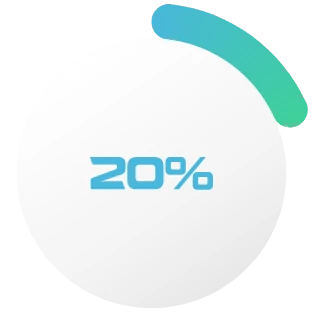

11–20%

Moderate (needs review)
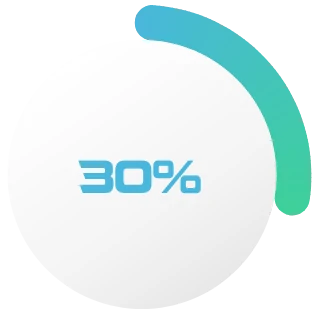
21–30%

Noticeable (upgrade soon)


31% Plus

Major (upgrade needed)

CPU Vs GPU Bottleneck: Definition, Factors, Results and Solutions

CPU Bottleneck

A CPU bottleneck occurs when the processor can not keep up with the GPU.
Its commonly happen in games with heavy multitasking.

Reason:

  • Low core/thread count
  • Slower clock speeds
  • Older technology

Results:

  • Low GPU usage
  • FPS drops
  • Choppy gameplay, even with a high-end GPU

Solution:

Upgrade the CPU to meet current and future system demands.

GPU Bottleneck

A GPU bottleneck occurs when the graphics card can not keep up with CPU.
Its common happens in graphically intensive games.

Reason:

  • Low VRAM
  • Outdated GPU models
  • Imbalance between GPU and CPU

Results:

  • CPU sits idle
  • Lagging in display
  • Visual stutters

Solution:

Upgrade the GPU to fix the issue and improve visuals for advanced graphics software.

Fixing the Different Types of System Bottlenecks

Let’s have quick view of how to fix the different types of PC bottleneck.

CPU Bottleneck Fixes

• Close unnecessary background applications
• Change the in-game settings (avoid maximum performance)
• If possible upgrade the processor

GPU Bottleneck Fixes

• Lower resolution or graphics settings
• Turn off anti-aliasing or shadows
• Replace the GPU with a better one

RAM Bottleneck Fixes

• Add more RAM (at least 16GB is great for modern systems)
• Check for background memory hogs
• Avoid running too many apps at once

Storage Bottleneck Fixes

• Switch from HDD to SSD (Game changer move)
• If using an HDD then keep your drive clean and defragment
• Clear temporary files and unused apps regularly

Additional Factors causing PC bottleneck and their solutions

  • Mismatch CPU and GPU brands/models are the factor that cause bottleneck. Even they are high end but cannot perform well.
  • CPU throttling: If your CPU gets too hot, it will throttle its speed to cool down. Check your PSU and cooling system to avoid it.
  • Intensive higher resolution can be a factor, so keep an eye on your screen resolution and refresh rate.
  • Do not ignore background apps, they can choke your RAM and never forget upgrading your RAM beside the core components.
  • Switch your storage type from HDD to SSD it will make a difference.
  • Outdated drivers can also be a reason of PC bottleneck, keep them up to date.
  • Enable DLSS or FSR (if supported)

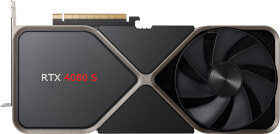
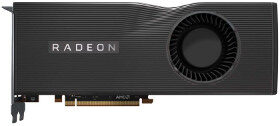
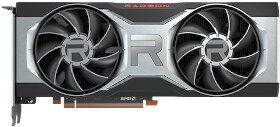
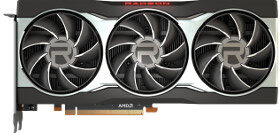
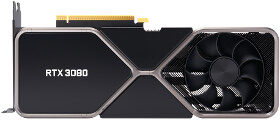
Trending Graphic Cards

Build smarter, Not harder.

Use your bottleneck results to choose balanced, cost-effective components and make every dollar count in your next PC build.

  • Quick Results
  • Smart Suggestion

FAQs

Usually, yes. Laptops have less cooling space and lower power limits, which means parts can not always run at full speed. In gaming laptops, its common for either the CPU or GPU to be held back, especially during long play sessions when heat builds up.

Yes, most work for both desktops and laptops, as long as you know your component models. But keep in mind that for mobile CPUs and GPUs results might not be exact because they perform differently from desktop.

No, this calculator is designed specifically for PC hardware. Consoles like the PS5 or Xbox have fixed, integrated systems, so you can’t swap out the CPU or GPU.

Probably, yes. If your current CPU is older or lower-tier, pairing it with a powerful GPU can lead to CPU bottlenecks. To get the optimal performance of high-end graphics card, your CPU should be strong enough to keep up, especially in modern games or demanding workloads.

It’s a classic sign of a CPU bottleneck and often happens in CPU-heavy tasks or games. Basically, your processor can not keep up with the graphics card, so the GPU sits idle instead of running at full power.

A little bottleneck doesn’t hurt your computer, and every PC has a bottleneck somewhere. It just means you’re not using the faster part to its full potential. Sometimes a bottleneck is okay. A lot of gamers actually prefer the GPU to be the one that’s maxed out, because it’s usually the most expensive part. If the GPU is working hardest, you’re getting your money’s worth out of it

First, open a tool like MSI Afterburner, or even the Windows Task Manager, to watch your CPU and GPU while you’re playing a game or running a heavy app. If one of them is almost at 100 % usage and the other is much lower, the one at 100 % is probably the bottleneck. For example, if your CPU is near 100 % but your GPU is only at 30 %, your CPU is slowing things down.

Think of it like this: if your GPU (or CPU) is just a bit stronger than the other part, that’s okay. It only becomes a problem if you pair, a super-fast graphics card with a really old budget CPU. Resultantly gets a low performance and waste of money. So, unless your parts are wildly unbalanced, you don’t need to worry about a mismatch.

Yes, but usually only in simple ways. If you don’t have enough RAM (like 4 GB on a modern system), your computer can slow down because it has to grab data from slower storage and this can make games or apps stutter. That’s a kind of bottleneck. Kingston says not having enough RAM can cause choppy textures or low frame rates because the CPU has to wait for data from the drive. And mixing RAM sticks of different speeds will slow down to match the slowest one.

Games rely on both CPU (for logic) and GPU (for graphics), so if they’re not balanced, one will be maxed while the other sits idle. Poor cooling, old drivers, or background programs add to the issue. Identifying and fixing that weakest component gives the biggest performance gain.

A balanced PC delivers smoother performance, better FPS, and fewer slowdowns. It also avoids overworking one part, which can extend the lifespan of your hardware.

Small tweaks can help reduce bottlenecks. Lowering game settings such as resolution or shadows, closing background apps, updating your graphics drivers, or adjusting power settings can free up resources without costing anything. Even simple changes like disabling overlays or dropping the resolution a bit can make gameplay feel much smoother.

Bottlenecks usually show more at 1080p because the GPU finishes frames faster, leaving the CPU to become the limiting factor. At 4K, the GPU works much harder, so a CPU bottleneck is less noticeable. This is why high-end CPUs often shine more in lower-resolution benchmarks.

No, lowering resolution usually makes a CPU bottleneck more obvious. At low resolutions, your graphics card has an easier job, so your CPU may become the choke point.
At high resolutions, the GPU works harder, which can mask CPU limits but expose GPU weaknesses. To ease a CPU bottleneck, it’s better to reduce CPU-heavy settings like draw distance, AI count, or physics effects.

Yes, you can still play, but performance may suffer. A mild bottleneck might only cause lower frame rates, while a severe one can lead to stuttering or input lag. The key is balancing your settings so the slower part of your system isn’t pushed too hard.

Yes. Streaming uses CPU power to encode video while you game. If your CPU is already close to max load, adding streaming can cause frame drops or stutter. In these cases, upgrading your CPU or using GPU-based encoding can help.

It depends upon which type of bottleneck you have, CPU or GPU. You just need to upgrade the part causing the bottleneck.  Sometimes balancing both with mid-range options is the most cost effective.

It doesn’t directly affect CPU or GPU bottlenecks, but it affects how fast data loads into memory and file transfers. NVMe drives are the fastest, then SATA SSDs, then HDDs. Faster storage means quicker load times and smoother asset streaming, especially in large, open-world games.

Yes! And it’s one of the most common bottlenecks in budget or office PCs. Integrated GPUs aren’t built for heavy gaming or 3D work, so they quickly max out, even if the CPU still has performance to spare.

Yes. Benchmarks show how CPUs, GPUs, and RAM perform in real tests. By comparing component scores, you can see if one part is far weaker than the others and might slow the whole system down.

Popular options include MSI Afterburner, HWiNFO, and GPU-Z. These show real-time CPU, GPU, and RAM usage so you can spot if one is maxed out while others are underused.

Yes. A CPU can be at high usage without being the main limiter. If the GPU is also fully used and performance matches expectations, then both are working well together.

VR is demanding on both CPU and GPU because it needs to render two high-resolution images at once. Bottlenecks often appear more clearly in VR since even small slowdowns can cause motion issues.

Not exactly. A weak power supply doesn’t create a bottleneck like a slow CPU or GPU would. But if your PSU doesn’t have enough wattage, your system might crash, slow down, or fail to run parts at their full potential. That can feel a lot like a bottleneck.

A bottleneck happens when one part of your PC holds back the performance of another. Throttling, on the other hand, is when a component slows itself down to avoid overheating or to save power. The main difference is that throttling is temporary and usually linked to temperature, while a bottleneck is more about the overall balance of your hardware. Both can occur at the same time, but they’re not the same thing.

You should check it:
• After any hardware change
• When games stutter or underperform
• Before upgrading displays or adding peripherals

Ready to Optimize Your PC?


This bottleneck calculator is your personal PC performance assistant. Run quick checks, compare results, and upgrade the right parts.